이번 챕터는 MCP 클라이언트 초기 구축 방법에 대해 알아볼 겁니다.
서버 안맹들었으면 서버부터 만들고 오셔유
[AI | MCP] Day 2. .NET Framework 환경에서 MCP Server 구축하기
아무래도 간단한 테스트 버전이라도 구현해보고직접 굴려봐야 내부 동작 이해가 가능할 것 같았다...(오늘의 좌우명 : 막히면 일단 박치기 !)Visual Studio 2022 에서 MCP Server와 Client, 각각의 콘솔 앱
moonmonoon.tistory.com
1. MCP Client
1. 새 프로젝트 생성
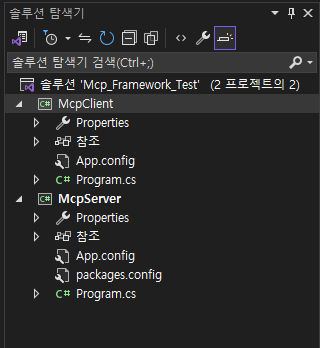
- [솔루션 탐색기] 탭에서 가장 상단의 [프로젝트] 우클릭 > [추가] > [새 프로젝트]
- 프로젝트 이름 'McpClient' 로 입력 > [만들기]
2. NuGet 패키지 설치
- [도구] > [NuGet 패키지 관리자] > [솔루션용 NuGet 패키지 관리]
- [설치됨] 탭 > 이전 서버 프로젝트에 설치했던 'ModelContextProtocol' 패키지를 클라이언트 프로젝트에도 설치
* 공식문서 업데이트 !!!
참고 영상의 MCP 패키지 버전은 'preview.4' -> 새로 업데이트된 공식문서는 'preview.8' 버전이다.
따라서 클라이언트 참조 패키지는 'preview.8' 버전 으로 진행해보았다.
3. Program.cs 코드 수정
- StdioClientTransport 옵션 설정
: Name 은 서버 프로젝트명으로
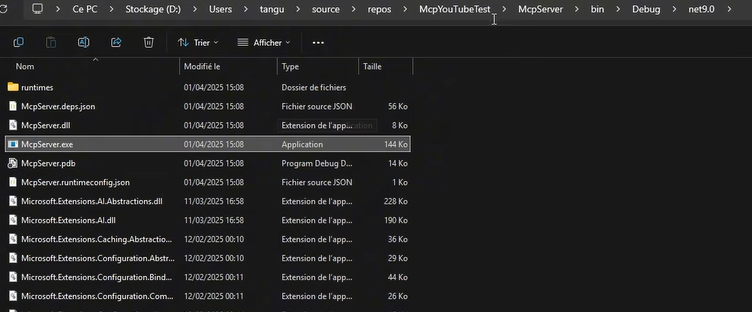
: Command 는 'npx' 대신 서버 실행프로그램 경로로 변경한다.
C:\Users\user\source\repos\Mcp_Framework_Test(솔루션명)\McpServer(서버 프로젝트명)
\bin\Debug\McpServer.exe

using ModelContextProtocol.Client;
using ModelContextProtocol.Protocol.Transport;
using System;
using System.Collections.Generic;
using System.Linq;
using System.Text;
using System.Threading;
using System.Threading.Tasks;

namespace McpClient
{
    public static class Program
    {
        static async Task Main(string[] args)
        {
            Console.WriteLine("Connection a server MCP...");

            var clientTransport = new StdioClientTransport(new StdioClientTransportOptions
            {
                Name = "MCPServer", // 서버 프로젝트 이름으로 변경
                Command = "C:\\Users\\user\\source\\repos\\Mcp_Framework_Test\\McpServer\\bin\\Debug\\McpServer.exe", // npx 대신, 서버 프로젝트 실행프로그램 경로로 변경
                //Arguments = arguments,
            });

            var client = await McpClientFactory.CreateAsync(clientTransport);
            Console.WriteLine("Successful connection !!!");


            // Print the list of tools available from the server.
            foreach (var tool in await client.ListToolsAsync())
            {
                Console.WriteLine($"{tool.Name} ({tool.Description})");
            }

            Console.ReadLine();
            Console.WriteLine("Disconnection of server MCP...");
            await client.DisposeAsync();
        }
    }
}
* 공식문서 참고 시 주의사항
C# 7.3 언어 문법 한계... 컬렉션 식, nullable 참조 형식 사용 불가
기존 솔루션 환경에 맞춰 .net framework 4.8.1 로 진행하다보니, C# 문법 버전에 충돌이 있다...
리스트 컬렉션은 직접 선언해주고, nullable 물음표는 삭제처리 한다.
4. 클라이언트 실행
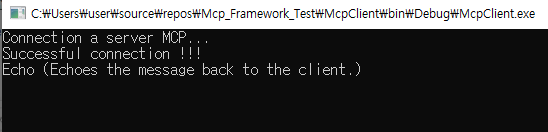
- 시작 프로젝트를 'McpClient'로 변경한 후 [시작 (F5)] 클릭
- Ctrl+C 로 종료
2. MCP Server 도구 정의하기
1. 새 폴더 추가
이전에 McpServer 내에 구현했던 'EchoTool 메서드'와 같이,
여러가지 Tool을 생성/관리하기 위해 별도 폴더 구조로 분리한다.
- [McpServer] 프로젝트 우클릭 > [추가] > [새 폴더] > 'Tools' 로 변경
- 'Tools' 폴더에 [새 항목] 클래스 추가 > 'EchoTool.cs' 생성
2. McpServer - Program.cs 에 있는 McpServerToolType 이동
using ModelContextProtocol.Server;
using System.ComponentModel;

namespace McpServer.Tools
{
    [McpServerToolType]
    public static class EchoTool
    {
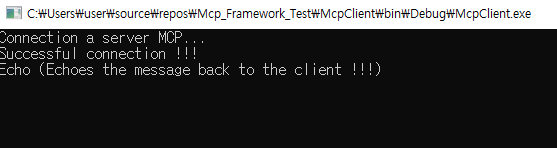
    // 이동시킨 메서드가 잘 실행되는지 확인하기 위해, Description 및 출력내용 변경
        [McpServerTool, Description("Echoes the message back to the client !!!")]
        public static string Echo(string message) => $"MCP Server: {message}";
    }
}
* 참고영상 테스트 시 주의사항
C# 7.3 언어 문법 한계... 파일 범위 네임스페이스 기능 사용 불가

3. McpServer 빌드
* 혹시 빌드가 안된다면 ?
[작업 관리자] > [세부 정보] 탭에 접속해서 'McpServer.exe' 가 실행 중인지 확인한다.
실행 중이라면 [작업 끝내기] 후, 재빌드
4. McpClient 실행(시작)
3. 콘솔 프롬프트 테스트
1. CallToolAsync() 로 도구 호출하기
// Execute a tool (this would normally be driven by LLM tool invocations).
var result = await client.CallToolAsync(
    "Echo", // ToolName
    new Dictionary<string, object>() { ["message"] = "Hello MCP!" }, // arguments
    null, // serializerOptions
    CancellationToken.None); // cancellationToken
* 공식 문서 복붙했더니 CancellationToken.None 에 오류 발생할 때
CancellationToken 파라미터 앞에 "serializerOptions" 이 빠져서 그렇습니다... null 을 추가해주세요!
2. McpClient 빌드 후 실행
* 빠른 단축키 팁 : Ctrl+B (빌드) -> F5 (실행)
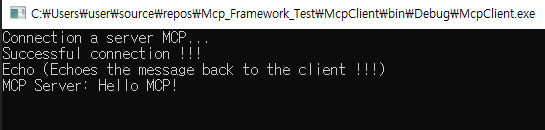
실행 시 Mcp 관련 오류 발생한다면, ToolName이 McpServer에 정의된 "메서드" 이름으로 정확히 입력되었는지 확인해주세요.
(파일명 아님, 정의된 메서드명 / 대소문자 구분)
사용자에게 직접 입력 받아서 결과값 받아볼 수 있도록, 추가 UI 구현 가능 !
3. 최종 완성된 McpClient - Program.cs 코드
using ModelContextProtocol.Client;
using ModelContextProtocol.Protocol.Transport;
using System;
using System.Collections.Generic;
using System.Linq;
using System.Text;
using System.Threading;
using System.Threading.Tasks;

namespace McpClient
{
    public static class Program
    {
        static async Task Main(string[] args)
        {
            Console.WriteLine("Connection a server MCP...");

            var clientTransport = new StdioClientTransport(new StdioClientTransportOptions
            {
                Name = "MCPServer", // 서버 프로젝트 이름으로 변경
                Command = "C:\\Users\\user\\source\\repos\\Mcp_Framework_Test\\McpServer\\bin\\Debug\\McpServer.exe", // npx 대신, 서버 프로젝트 실행프로그램 경로로 변경
                //Arguments = arguments,
            });

            var client = await McpClientFactory.CreateAsync(clientTransport);

            Console.WriteLine("Successful connection !!!");

            // Print the list of tools available from the server.
            foreach (var tool in await client.ListToolsAsync())
            {
                Console.WriteLine($"{tool.Name} ({tool.Description})");
            }

            // Execute a tool (this would normally be driven by LLM tool invocations).
            var result = await client.CallToolAsync(
                "Echo",
                new Dictionary<string, object>() { ["message"] = "Hello MCP!" },
                null,
                CancellationToken.None);

            // echo always returns one and only one text content object
            Console.WriteLine(result.Content.First(c => c.Type == "text").Text);

            Console.ReadLine();
            Console.WriteLine("Disconnection of server MCP...");
            await client.DisposeAsync();
        }
    }
}
4. Cursor AI 연동
1. 아래 링크에서 다운로드 -> Cursor 실행
https://www.cursor.com/downloads
Downloads | Cursor - The AI Code Editor
Download Cursor
www.cursor.com
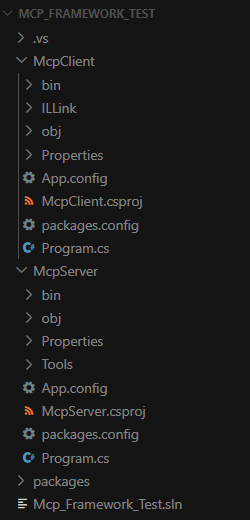
2. Mcp 솔루션 폴더 열기
3. Cursor Setting 에서 MCP Servers 설정
- 상단 우측 톱니바퀴 아이콘 [설정] > [MCP] 탭 > [Add new global MCP server] 버튼 클릭
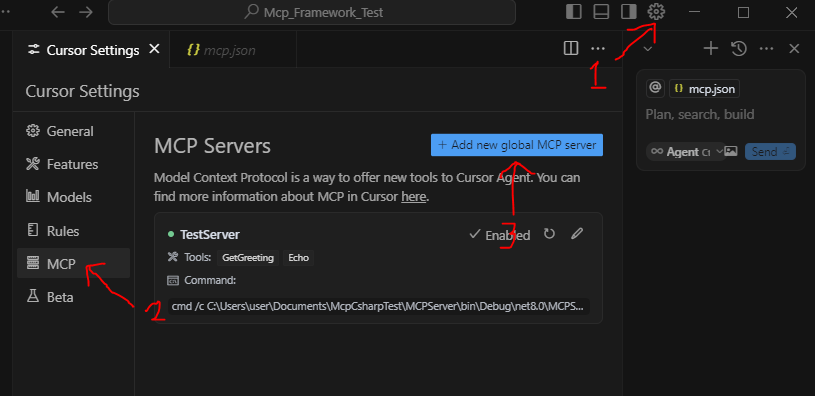
- mcp.json 파일 편집 및 저장
{
  "mcpServers": {
    "TestServer": { // 서버 이름
      "command": "cmd",
      "args": [
        "/c",
        "C:\\Users\\user\\source\\repos\\Mcp_Framework_Test\\McpServer\\bin\\Debug\\McpServer.exe"
      ]
    }
  }
}
C:\\Users\\user\\source\\repos\\Mcp_Framework_Test\\McpServer\\bin\\Debug\\McpServer.exe
(상단의 3-3. Program.cs 코드 수정 부분의 서버 실행프로그램 경로 참고)
- 추가한 MCP Server
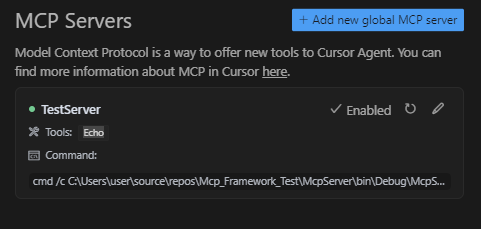
* [Refresh] 버튼 클릭 해도 'Client closed' 오류가 발생한다면
서버 실행프로그램 경로가 잘못되었을 때 발생했다. 올바른 경로를 입력하면 정상 실행된다 !
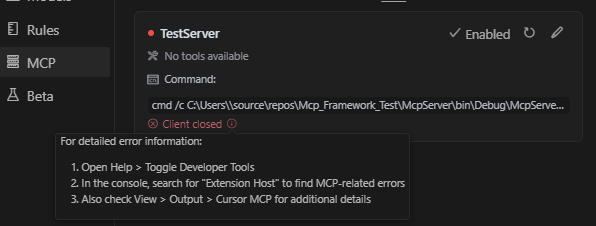
4. [New chat] 프롬프트에서 추가한 MCP 서버 활용하기
- 프롬프트 상단에 [mcp.json] 태그는 [x] 버튼으로 삭제
- "can you try the echo tool?" 질문 후 [Send] 버튼 클릭

- 예제 출력 : 'message' 파라미터로 넘길 예시를 보여준다 !
- [Run tool] 버튼 클릭
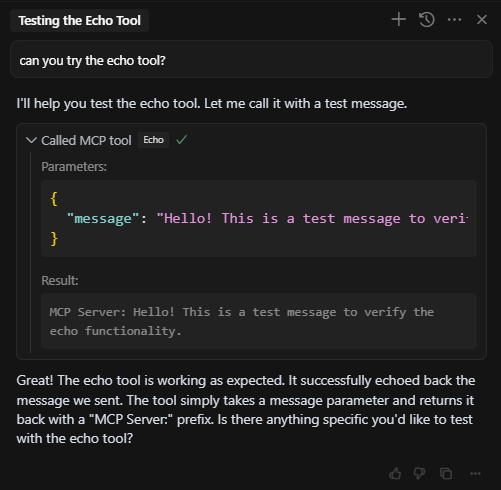
- 실행 결과 출력 : 메시지를 넘겨 받은 Echo 도구의 실행 결과를 잘 출력하고 있다 !
하단 출력문 번역)
잘 작동합니다! echo 도구가 예상대로 작동합니다. 보낸 메시지를 성공적으로 에코했습니다. 이 도구는 메시지 매개변수를 받아서 "MCP Server:" 접두사를 붙여 반환합니다. echo 도구로 특별히 테스트해 보고 싶은 부분이 있으신가요?
이로써 ".NET 환경에서 MCP 구축하기 기초"는 완료 !
5. 참고자료
[참고영상]
https://www.youtube.com/watch?v=mhgcdMe7uhE
[참고문서]
[공식문서 - C# SDK 패키지]]
'Getting Started (Client)' 부분 참고 ! (참고영상 버전 이후로 공식문서 새로 업데이트 됨 주의..!)
'🧙🏻♀️🌌 고독한 개발자의 삶 > 한국에서C#개발자로살아남기' 카테고리의 다른 글
| [AI | MCP] Day 4. Anthropic.SDK 로 .NET MCP Client 구현 (1) | 2025.04.14 |
|---|---|
| [AI | MCP] Day 2. .NET Framework 환경에서 MCP Server 구축하기 (1) | 2025.04.08 |
| [AI | MCP] Day 1. "MCP가 뭐야?.... 대단한 분들이지~!" (1) | 2025.04.08 |
| [AI | MCP] Day 0. "MCP, 너 뭐 돼?" (1) | 2025.04.08 |